Using Photoshop to Identify and Correct Painting Errors
How digital tracing helps me improve accuracy in traditional painting.
One of the challenges of painting from a photograph is accurately reproducing shapes, proportions, and perspective. Even with careful observation, small mistakes can go unnoticed.
I’ve found that Photoshop provides a useful way to identify these differences before making corrections to my painting.
Starting With the Reference Photograph
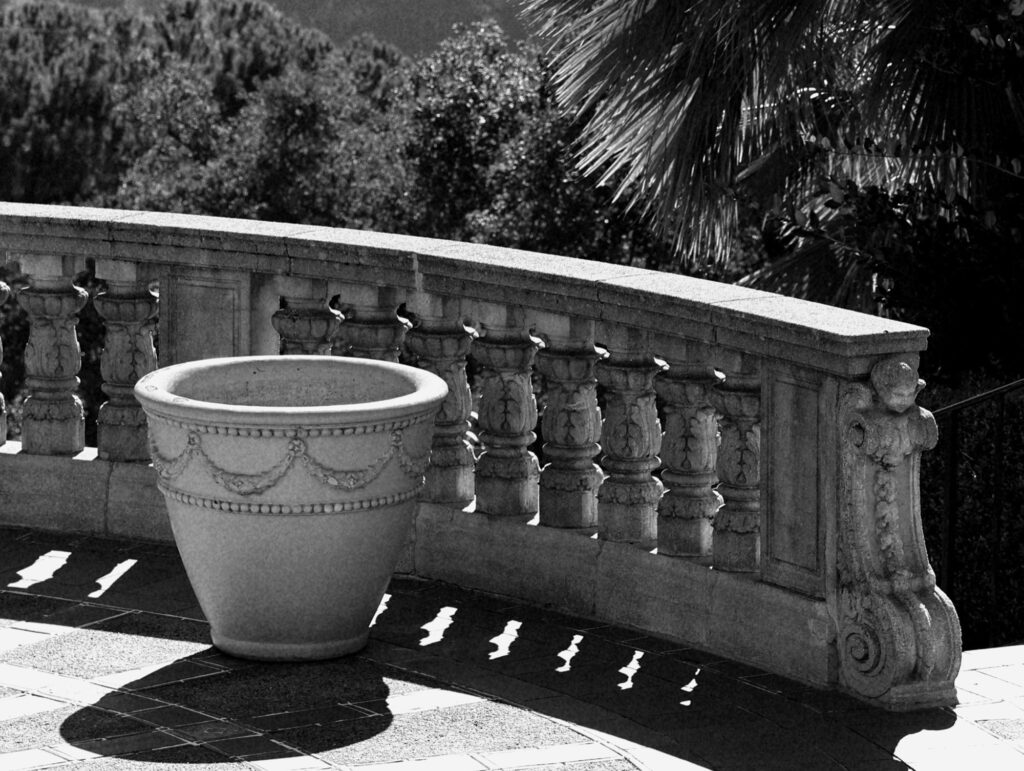
For this painting, I chose an architectural scene featuring a decorative planter and curved stone railing.
The repeating architectural details, curved surfaces, and strong shadows make this an interesting subject, but they also present challenges when trying to reproduce them accurately.
Examining My Painting
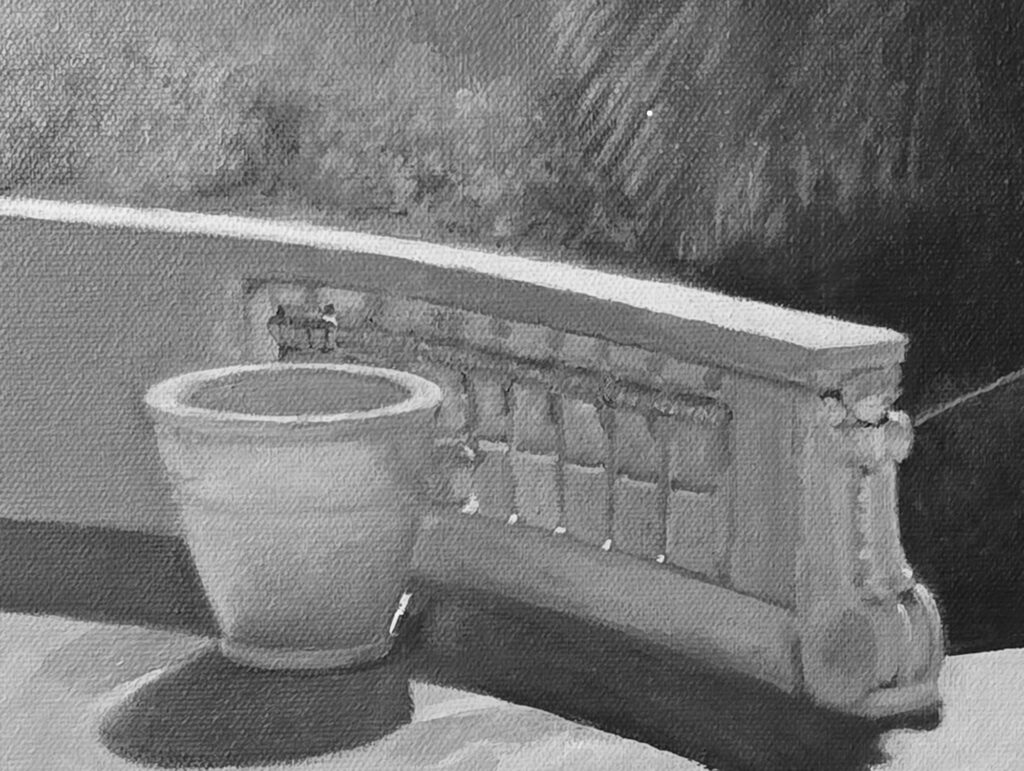
After working on the painting, I photographed it and opened the image in Photoshop.
Although the overall composition looked reasonably accurate, I wanted to examine the shapes and proportions more closely.
Creating a Digital Tracing
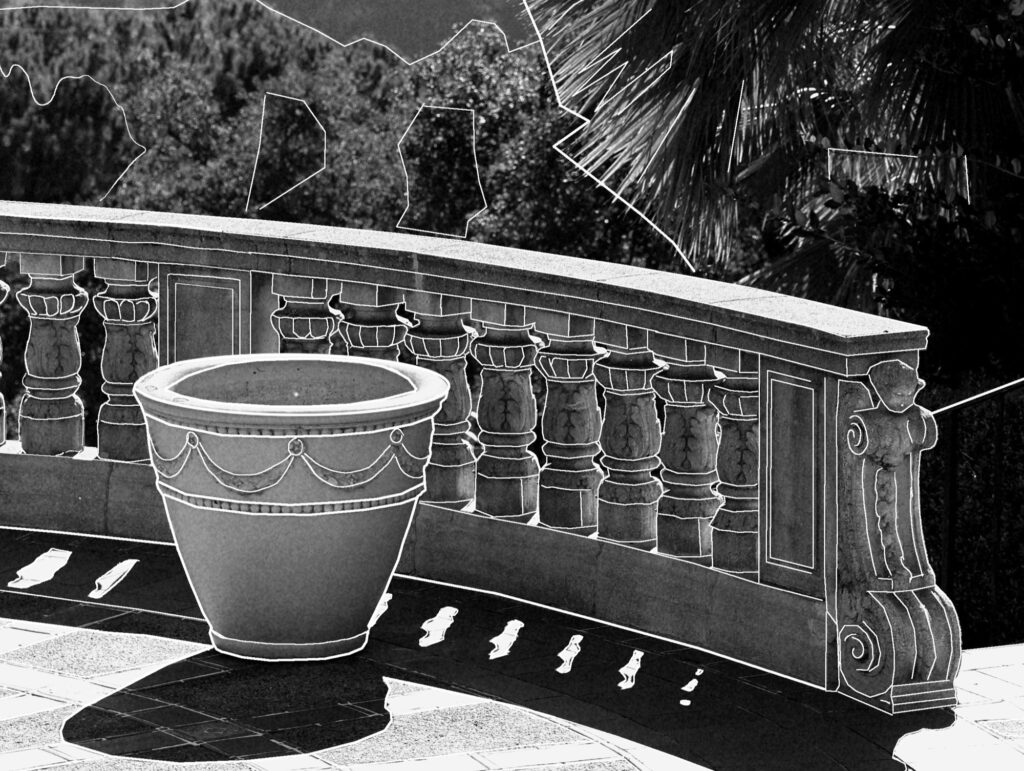
Using Photoshop, I created a transparent layer and traced the important outlines of the original photograph in white.
I concentrated on the planter, architectural details, curves, and shadow boundaries rather than tracing every small detail.
This gave me a guide that I could place over my painting.
Comparing the Painting With the Reference
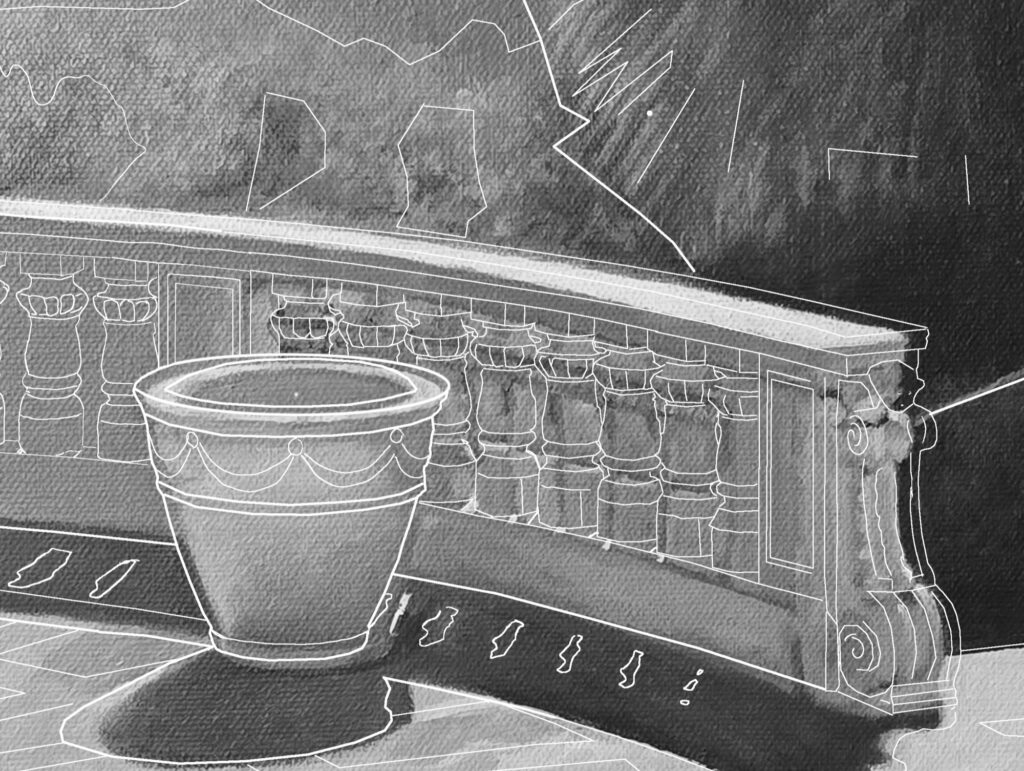
I placed the tracing layer over the photograph of my painting, carefully aligning and scaling the images.
The white lines made it much easier to see differences between my painting and the original photograph.
Areas that appeared correct at first glance sometimes showed noticeable differences when compared directly.
Identifying Corrections
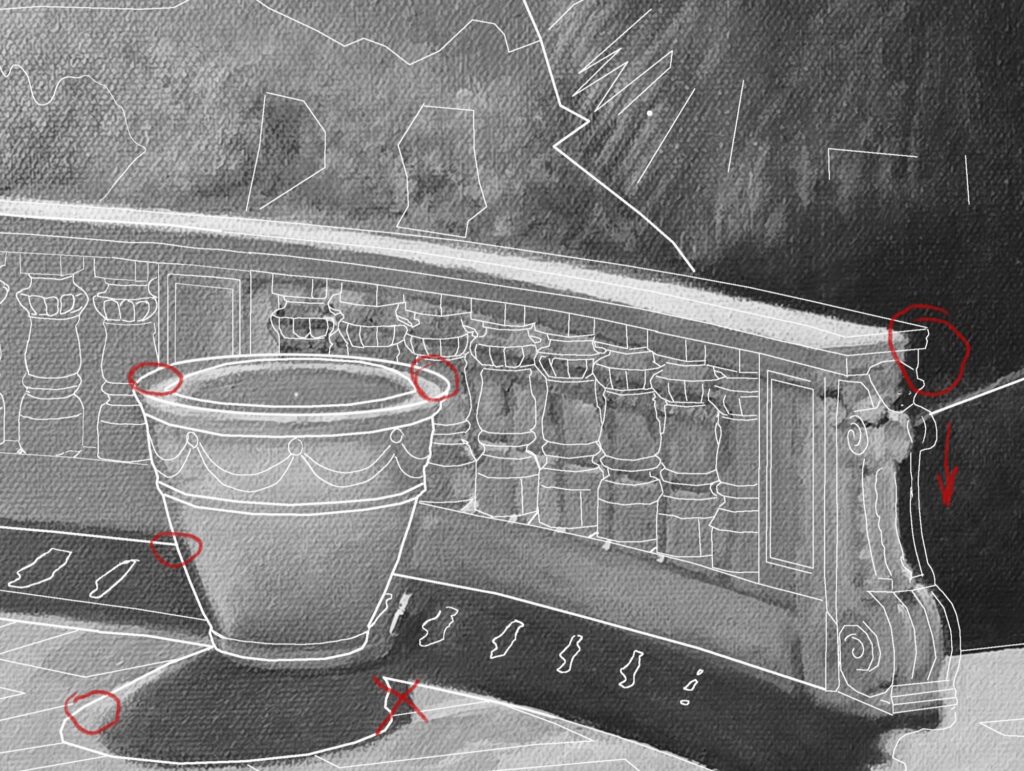
I marked several areas in red where I wanted to make adjustments.
These included the elliptical opening of the planter, its outer contours, the architectural railing, and the shape of the cast shadow.
Rather than guessing where corrections might be needed, I now had specific areas to concentrate on when returning to the painting.
Final Thoughts
I don’t consider digital tools a replacement for traditional painting skills. Instead, I see them as another way to improve my observation and understanding of proportion, perspective, and shape.
Photoshop allows me to examine my painting more objectively and recognize mistakes that might otherwise go unnoticed.
My process is simple:
Observe → Paint → Photograph → Compare → Correct
The goal isn’t necessarily to create a perfect reproduction of a photograph, but to become more accurate in what I see and how I translate that information into a painting.
For me, every correction is another opportunity to learn and become a better artist.
Inspiration and Credit
I learned about this technique from artist Caitlin Winner, whose use of digital drawing guides to evaluate and improve paintings inspired me to incorporate this approach into my own work.
Caitlin is currently developing a workshop demonstrating how she uses her Drawing Guide in practice.
I encourage you to explore her artwork and learn more about her techniques and upcoming workshop at caitlinwinner.com.